
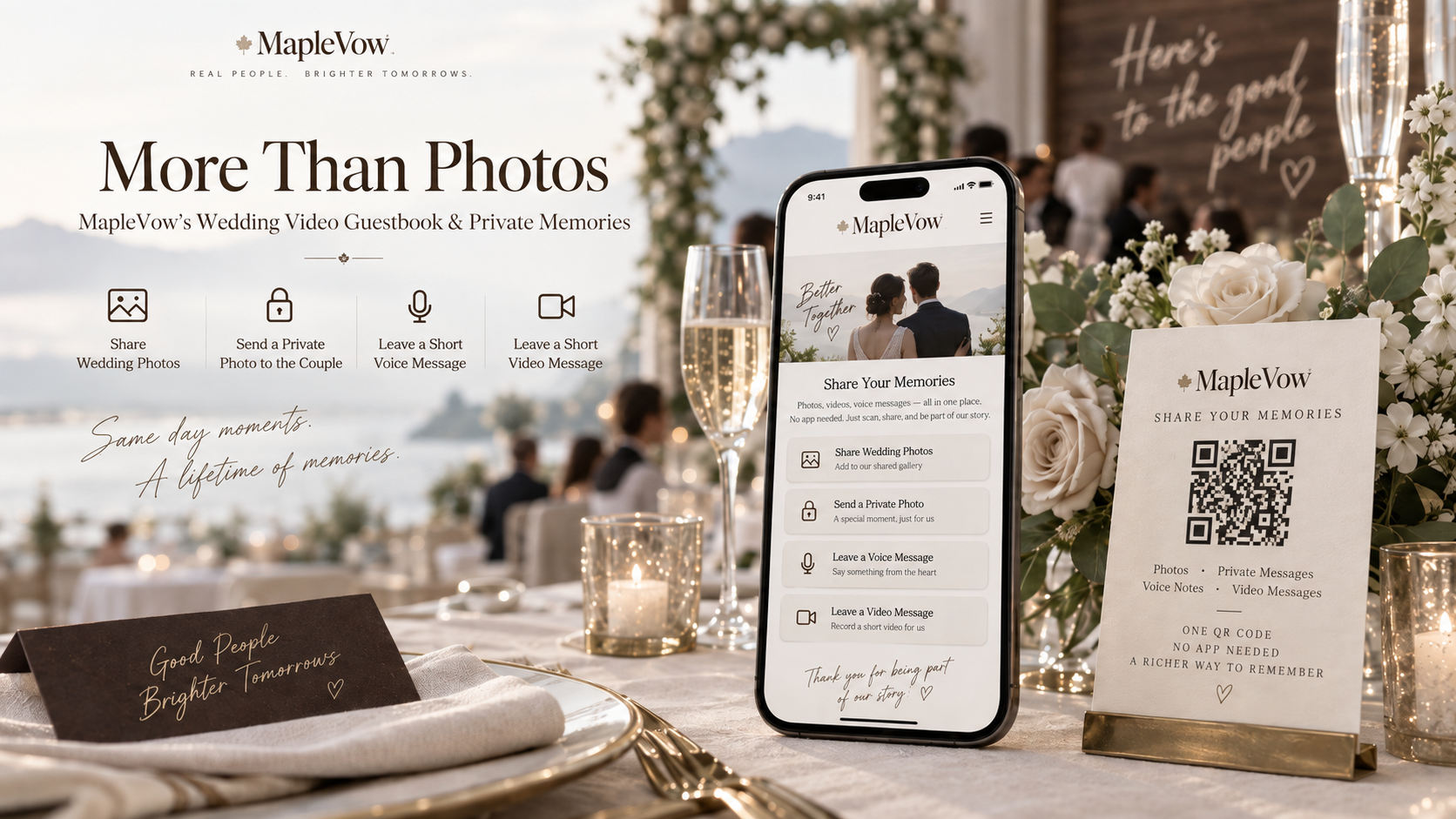
Your photographer will capture the ceremony beautifully. What no photographer can capture is your uncle's voice at table nine, or the thirty seconds your oldest friend spends trying not to cry before saying something lovely.
A wedding video guestbook catches those moments — and MapleVow now has one built into the guest photo page you were already going to share.
It runs on the same QR code your guests scan for photos. No second link, no second sign, and no app for anyone to install.
We also just released MapleVow’s Voice & Video Guestbook, so couples can now collect private voice and video messages alongside guest photos, all in one place.
What Is a Wedding Video Guestbook?
A wedding video guestbook is the modern version of the leather book by the door.
Instead of writing a line they cannot think of on the spot, guests can record a short message for you: the toast they were too shy to give, the story of how they met you, or a few words from grandparents who were never going to make the speech list.
MapleVow’s version brings three things together in one place:
a voice guestbook for audio messages
short video messages
the wedding guest photos you were already collecting
Together, they create a digital wedding guestbook that sounds and looks like the people who were actually in the room.
How Does a QR Code Wedding Guestbook Work?
If you have used MapleVow’s guest photo page, you already know the flow. This is that same page, with more for your guests to do.
Turn on Guest Photos and the Voice & Video Guestbook in your dashboard.
Print the QR code, or place it on table cards, your welcome sign, or the menu.
Guests scan it with their phone camera, and the page opens directly in their browser — nothing to install and no account to create.
They choose what they want to leave: photos, a voice message, or a video message.
Because the guestbook and photo sharing use the same QR code and page, your link and PIN settings stay exactly as you set them.
One sign at the reception covers all of it.
What Guests and Couples Each See
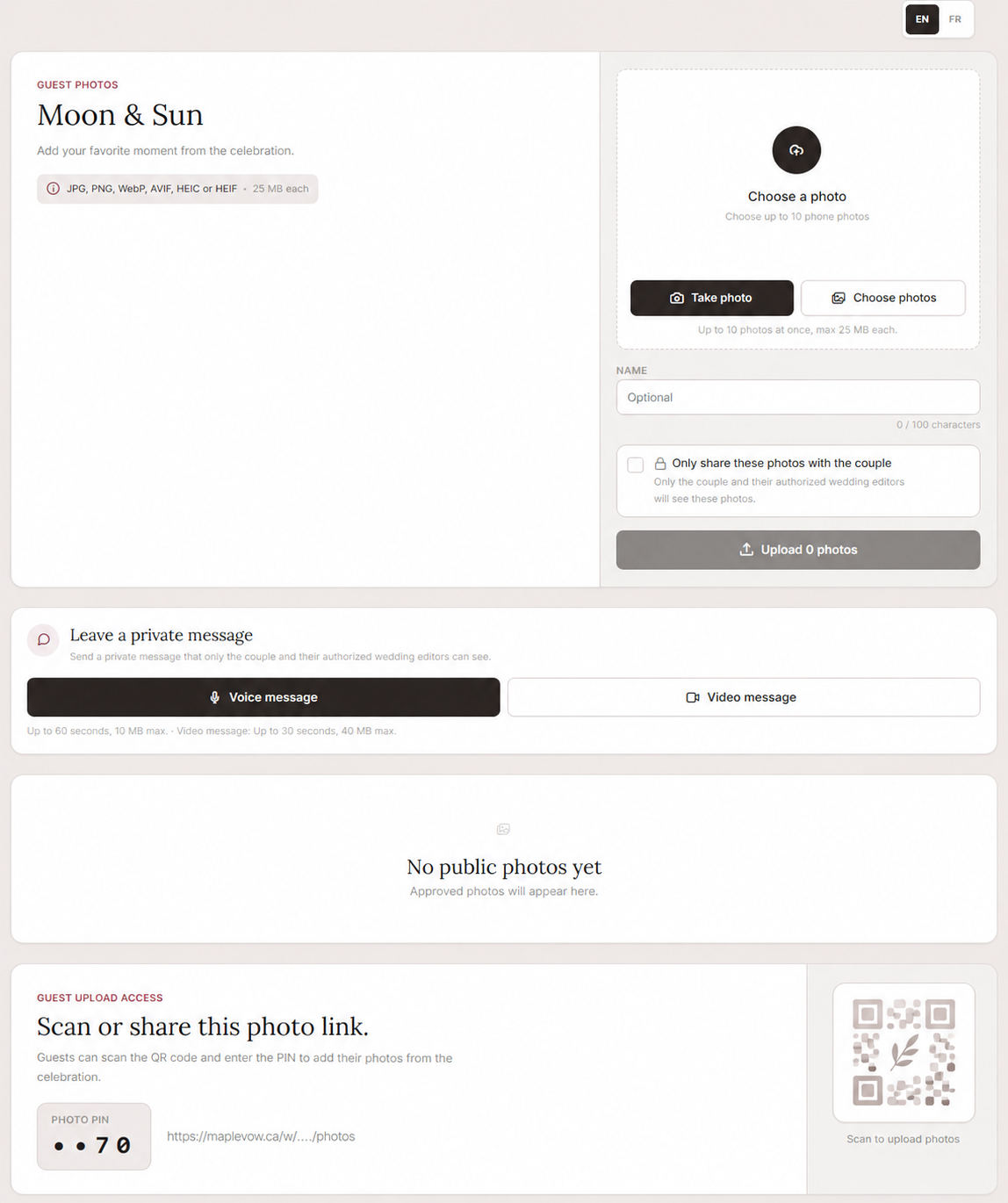
Guests see the shared page opened from the QR code. From there, they can upload photos, choose to send photos privately to the couple, and — if enabled — record a voice or video message.
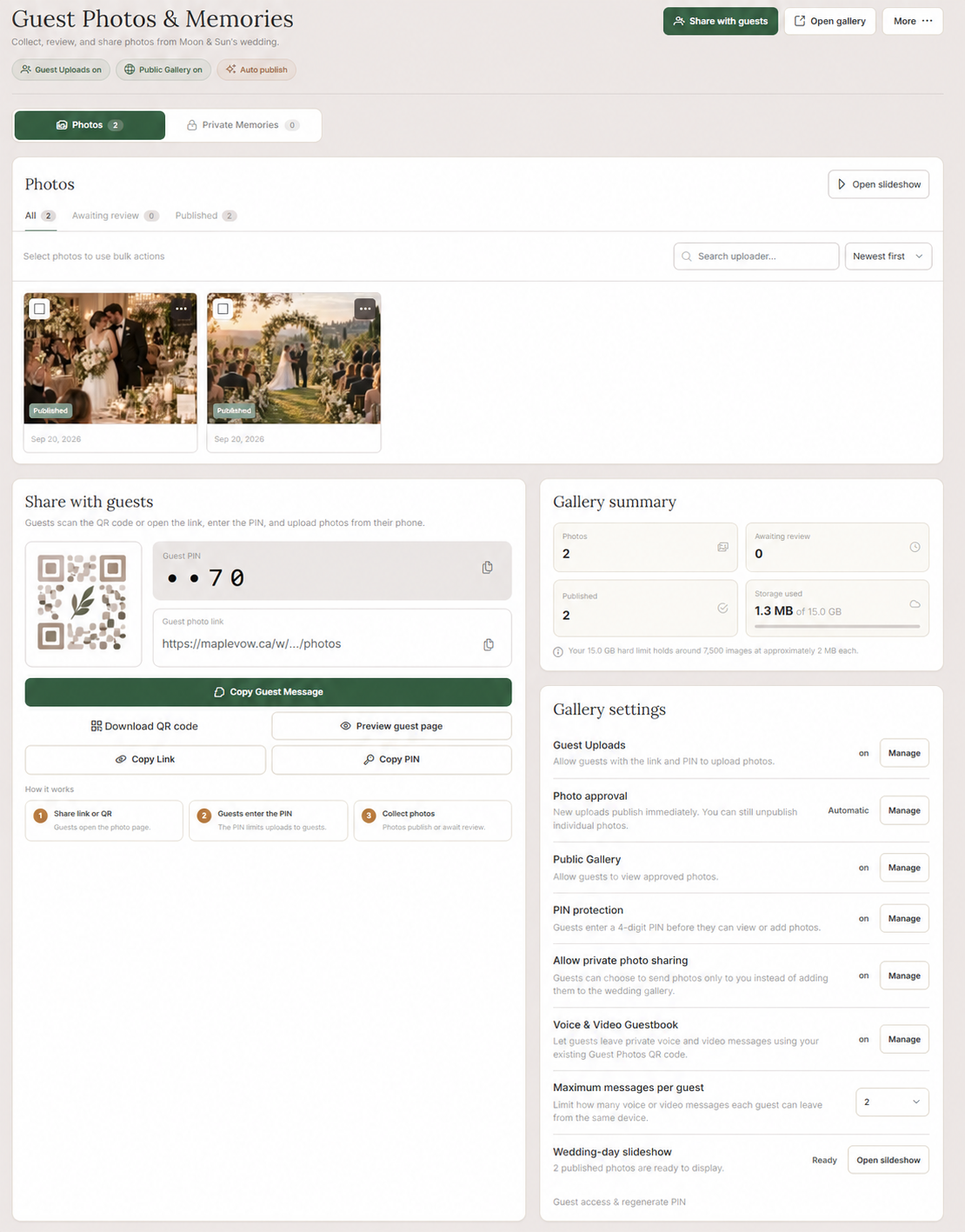
The couple sees the management side inside MapleVow, where they can review, publish, download, or remove gallery photos, and also access Private Memories, where private photos and voice/video messages are kept.
Guest View
Couple View
Photos, Voice and Video in One Place
Wedding Guest Photos
Guests can upload photos from their camera roll or take a photo on the spot, and it goes to your wedding gallery.
You can review photos before they appear or let them publish automatically — the wedding photo sharing you already had, unchanged.
Private Wedding Photos
Some photos are not meant for the gallery.
A guest can now select Only share these photos with the couple, and those photos will arrive in your Private Memories instead.
They never appear in the public gallery, even if you change your gallery settings afterward.
Voice Messages
Guests can record voice messages up to 60 seconds long.
They press record, watch the timer, and listen back before deciding whether to send it. If it did not come out quite right, they can simply record it again.
Nothing is sent until they tap Send.
Video Messages
Guests can also record video messages up to 30 seconds long using their phone’s front camera.
The process is just as simple: record it, watch it back, retake it if needed, and send it when they are happy with it.
That review step matters more than it sounds.
People can be shy on camera. Knowing they can listen or watch first and start over is often the difference between someone skipping the guestbook and leaving you a message you will keep for years.
Current Upload Limits
There is no fixed maximum number of photos in the gallery. Instead, guest media uses the storage included with your account.
Photo uploads
Guests can currently upload:
up to 10 photos at once
up to 25 MB per photo
supported formats: JPG, PNG, WebP, AVIF, HEIC, and HEIF
Voice & video guestbook
Current guestbook limits are:
voice messages: up to 60 seconds, maximum 10 MB
video messages: up to 30 seconds, maximum 40 MB
Gallery photos, private photos, voice messages, and video messages all share the same 15 GB storage allowance included with the feature.
Because the Voice & Video Guestbook is newly released, we may refine these limits over time based on real usage and customer feedback. Based on our testing and QA so far, the current limits should be more than enough for guestbook-style messages, but we are open to adjusting them if couples need more.
Keeping Private Wedding Memories Private
Voice and video messages are private, and there is no setting that makes them public.
They arrive in one place: Private Memories in your MapleVow dashboard.
From there, you — and anyone you have given editing access to your wedding — can:
play voice and video messages
download them
delete them
view privately shared photos
Guests cannot browse each other’s private messages.
A guest only sees what they submitted themselves and can delete their own message if they change their mind.
Private photos appear in the same section alongside the recordings, while your public wedding gallery remains separate.
What You Control
Turn It On or Off
The guestbook stays off until you turn it on.
If you turn it off later, guests can no longer submit new messages, but the memories you have already received stay safely in your account.
Messages Per Guest
Choose how many messages each guest can leave:
1
2
3
5
Unlimited
The default is 2 messages per guest — enough for two people sharing a phone at the same table without one enthusiastic guest filling the whole guestbook.
Storage
Gallery photos, private photos, voice messages, and video messages all share the same 15 GB of storage included with your account.
Nothing is metered separately.
After the Wedding
Download the memories you want to keep and delete anything you do not.
They are yours.
How Canadian Couples Get Started
The Guest Photo Gallery is included with Evermore or available as an add-on.
The Voice & Video Guestbook is included with Evermore and Planner.
To get started:
Open Guest Photos & Memories in your MapleVow dashboard.
Turn on Guest Photos and, if available on your plan, the Voice & Video Guestbook.
Choose how many messages each guest can leave.
Print the same QR code you were already going to share.
Then place the QR code somewhere guests will pass more than once — beside the bar is traditional for a reason — and let the gallery and guestbook fill up while you get on with having a wedding.