
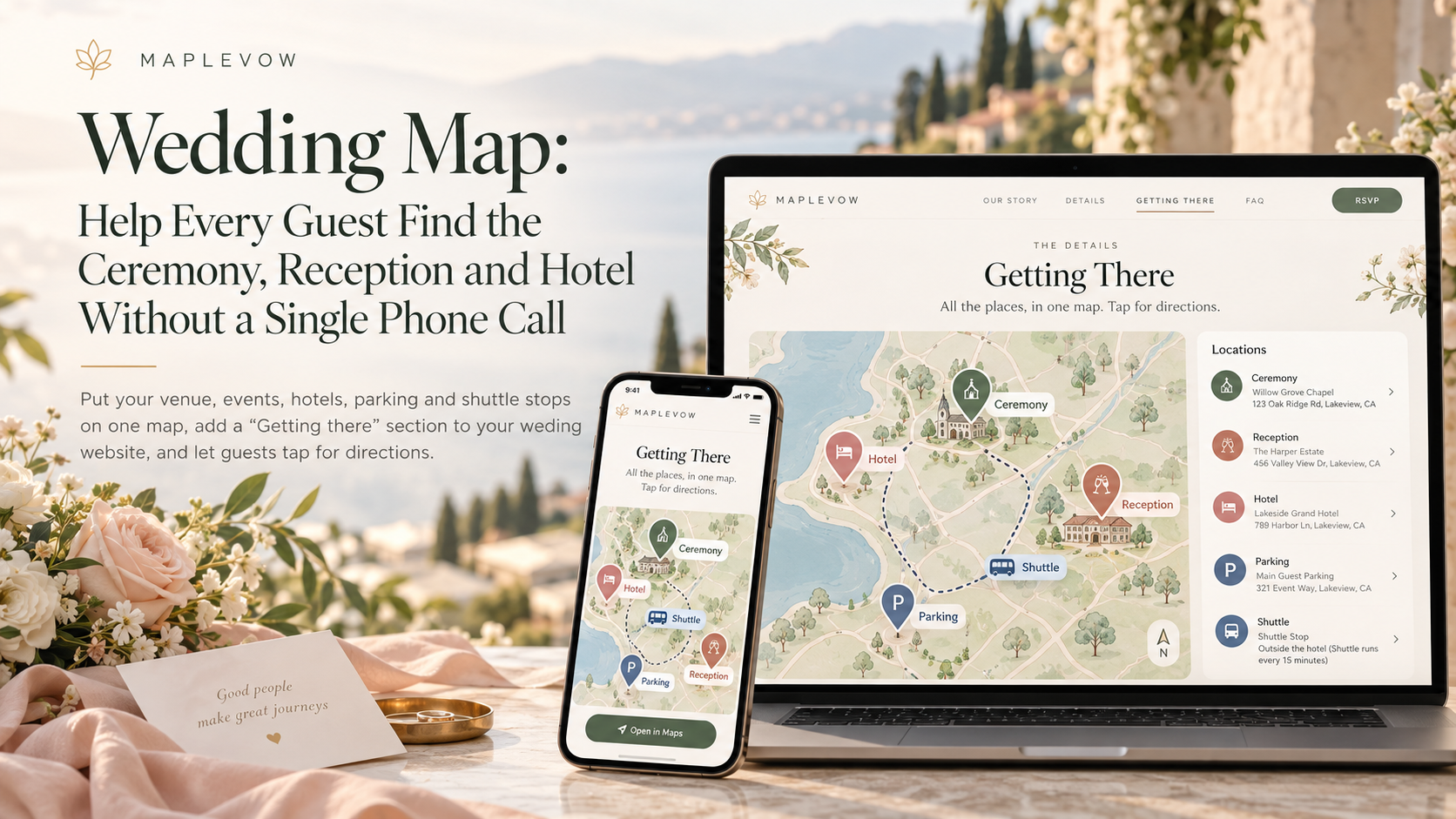
Every couple knows the texts that start arriving the week of the wedding. Which entrance is the ceremony? Is the reception at the same place? Where do we park? What time is the shuttle from the hotel? Multiply that by an aunt arriving from Calgary, friends driving in from Ottawa and grandparents who have never been to the venue, and you spend your last week answering the same question twenty times.
Canadian weddings make this harder than most. The ceremony might be at a church downtown, the photos at a park, the reception at a winery forty minutes away, and the tea ceremony at your parents' home in the morning. Rural venues often have a gravel road your GPS has never heard of.
The wedding map in MapleVow puts every place for your celebration on one map, and the Getting there section shows it to guests on your wedding website, with one-tap directions to each stop.
What the wedding map does
Open Wedding website → Wedding map in your dashboard. MapleVow fills it in for you from details you have already entered:
Your venue from your wedding details.
Every event with an address, such as the ceremony, reception, rehearsal dinner or brunch.
Hotels listed on your wedding website.
Then add the places only you know about. Each one gets a type, so guests can tell them apart at a glance:
After-party, for the bar down the street.
Getting ready, for the bridal suite or the groom's hotel room.
Parking, for the lot behind the hall, not the one that closes at 6 PM.
Airport, for out-of-town guests.
Shuttle or transport, for the bus pick-up point.
Other, for anything else, like the photo spot or the church hall.
Every place can carry a short note for guests, such as "Shuttle leaves at 4:30 PM sharp" or "Use the side door on Elm Street." That note is exactly what your guests will be looking for on the day.
Route lines: the whole day at a glance
When two or more events on the same day have an address and a start time, MapleVow draws a solid route line joining them in the order they happen. Guests see at a glance how the day flows from the ceremony to the photos to the reception, with a typical drive time between each stop.
Every hotel and every place you add also gets a dashed line to your venue, with its drive time. Guests choosing between two hotels can see straight away which one is ten minutes away and which one is forty.
Drive times are estimates without traffic, so use them to check that your schedule is realistic. If the reception is 45 minutes from the ceremony, a 30-minute cocktail gap will not work, and it is far better to find that out now than on the day.
Getting there on your wedding website
On the Evermore and Planner plans, add the Getting there section to your wedding website. Guests see:
One map with every place you chose to share, each marked by type.
A list under the map with each name, address and your note, so the information is still there for anyone who prefers to read rather than zoom.
A Directions button on every place, which opens the guest's own maps app on their phone, ready to navigate.
There is nothing for guests to download and no account to create. They open your website, tap Directions and go.
How to set it up in five minutes
Add your addresses. Make sure your venue is in your wedding details and each event has its full address, including the city.
Open the wedding map. Go to Wedding website → Wedding map and check that each pin landed in the right spot. It takes a few seconds for new addresses to appear.
Add your own places. Use Add a place for parking, the shuttle stop, the after-party or the airport, and write a short note for each one.
Hide anything private. Untick Show this place to guests for places only you need, such as where you are getting ready.
Show it to guests. In the Show to guests card, use the Wedding website row to add the Getting there section in the website builder, and turn on the RSVP page switch if you want the map on your RSVP page too. Then open your website on your phone and tap Directions once to see what your guests will see.
Tips to make the day easier for guests
Always include the city. "123 Main Street" exists in hundreds of Canadian towns. "123 Main Street, Picton, ON" exists once.
Pin the entrance, not just the venue. Large venues, golf clubs and university campuses have many doors. Add a place for the right entrance or parking lot and say which one in the note.
Write rural directions in the note. If GPS gets confused near a farm or cottage venue, say so: "Turn left at the red barn after the GPS says you have arrived."
Add the shuttle with a time. A shuttle stop with "Leaves 4:30 PM, returns 11:30 PM" answers the most common question before anyone asks.
Help out-of-town guests. Add the airport and your room-block hotel so travellers can see how far everything is.
Write notes in your guests' languages. MapleVow shows its own labels in English, French or Chinese, depending on what each guest picks. Notes you write are shown as you wrote them, so write them in the language or languages your guests read.
Mention it in your reminder. A line in your reminder email such as "Maps and directions are on our website" sends everyone to the one place with the right answer.
Frequently asked questions
Do guests need an app or an account?No. The map opens on your wedding website in any browser, and the Directions button uses whatever maps app the guest already has.
Which plans include Getting there on the website?The Getting there section on your wedding website is part of the Evermore and Planner plans.
Can I keep some places private?Yes. Every place you add has a Show this place to guests switch. Hidden places stay on your own map only.
Can I change places after I share my website?Yes. Edit a place at any time and your website updates right away. The link you shared does not change.
Does the map work for weddings with several days or venues?Yes. Add as many places as you need, up to 40. Solid route lines join the events of each day in order, and dashed lines show how far each hotel and place is from your venue.
Does it work in French and Chinese?Yes. Map labels, place types and buttons follow the language each guest chooses on your website.
Ready to stop answering "where is it?" Open your wedding on MapleVow, go to Wedding website → Wedding map, and put every place on the map.