
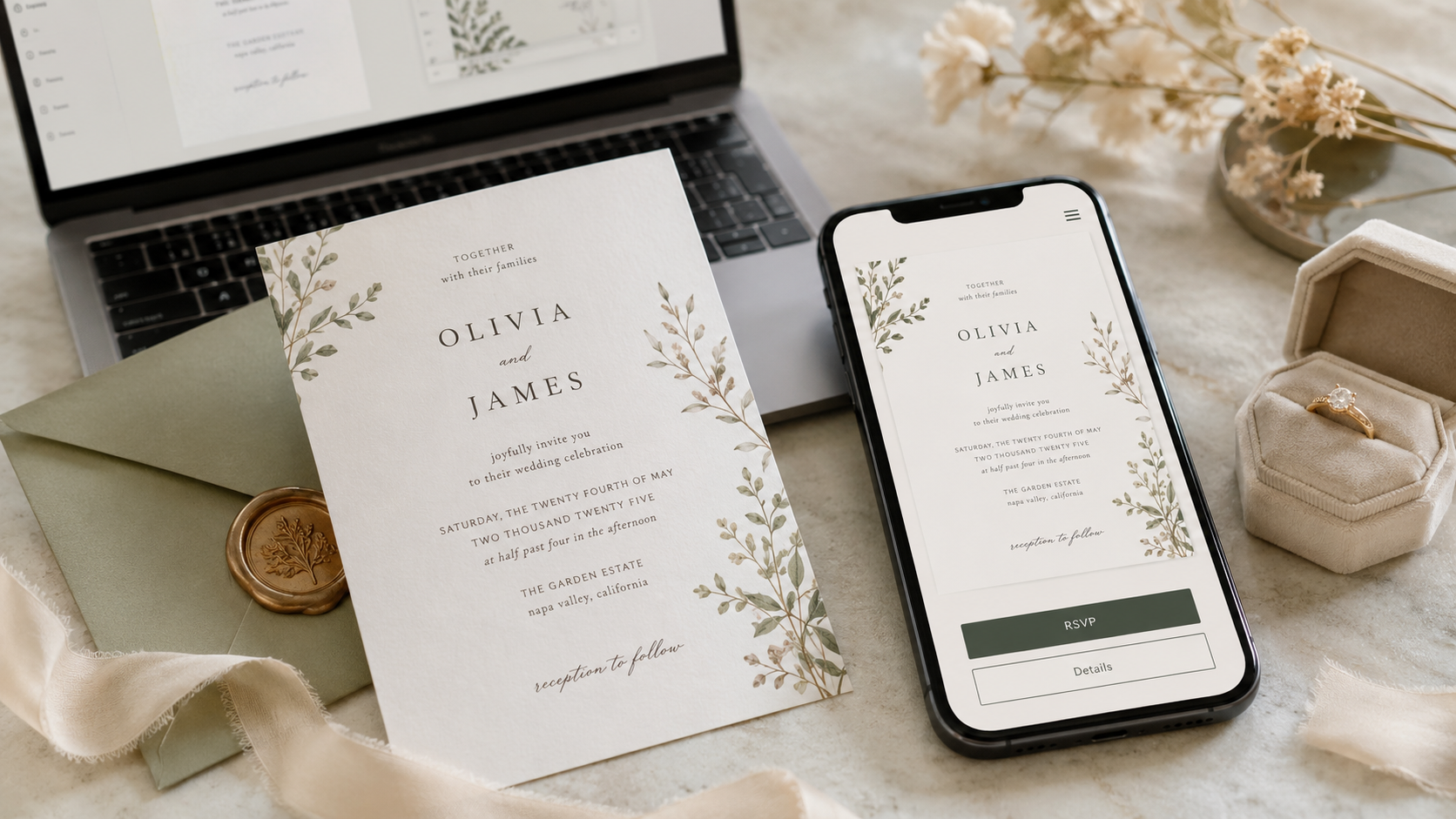
Plenty of couples arrive at MapleVow with an invitation they already love.
Maybe it came from a Canva afternoon, an Etsy designer, or a local stationer. Until now, the digital invitation had to be rebuilt from one of our templates — close, but never quite your invitation.
That gap is closed.
You can now upload your finished invitation and make it the invitation your guests actually receive.
How it works
In the Digital Invitation editor, choose Upload your invitation and add a JPG, PNG, or WebP of your design, up to 6 MB.
MapleVow automatically optimizes it for fast loading on your guests' phones, so using a print-resolution export is completely fine.
Your uploaded design becomes the entire invitation. MapleVow adds only two things on top:
The RSVP button
The wedding website button
You decide where those buttons appear — above the invitation, below it, or overlaid directly on the design. You can also choose the button colours so they feel like a natural part of your invitation.
Everything else stays exactly as you designed it.
Changed your mind later? Simply remove the uploaded image and your MapleVow template comes right back, with all of its previous settings preserved.
Your RSVP page can match
An invitation sets the tone for your wedding, so it can feel strange when the RSVP page looks completely different.
Now, it doesn't have to.
In the RSVP Form Builder, choose Match invitation and MapleVow will use compatible colours and typography based on your invitation.
If you later change your invitation, the RSVP page can follow along with it.
Want something different at the top of your RSVP page? You can also upload a separate RSVP header image.
It can be a favourite photo, your wedding crest, a floral detail from your stationery suite, or another design entirely. The RSVP header is independent, so changing it won't affect your invitation.
Also new: clearer typography choices
While improving the invitation experience, we also refreshed MapleVow's font pairings.
The script pairing now uses Great Vibes, a true calligraphy typeface, instead of an italic serif.
That means the three available pairings now feel genuinely different:
All serif for a classic, elegant look
Serif + clean sans serif for a more modern balance
Calligraphy + clean sans serif for a romantic invitation style
You'll see the same typography in both the editor and the invitation your guests receive.
Getting started
Open your wedding and head to Digital Invitation.
From there, you can continue designing with a MapleVow template or choose Upload your invitation to use a design you've already created.
Then open the RSVP Form Builder and try Match invitation to carry the same look into your RSVP experience.
Your invitation. Your design. One consistent guest experience — from the invitation to the "we'll be there."