
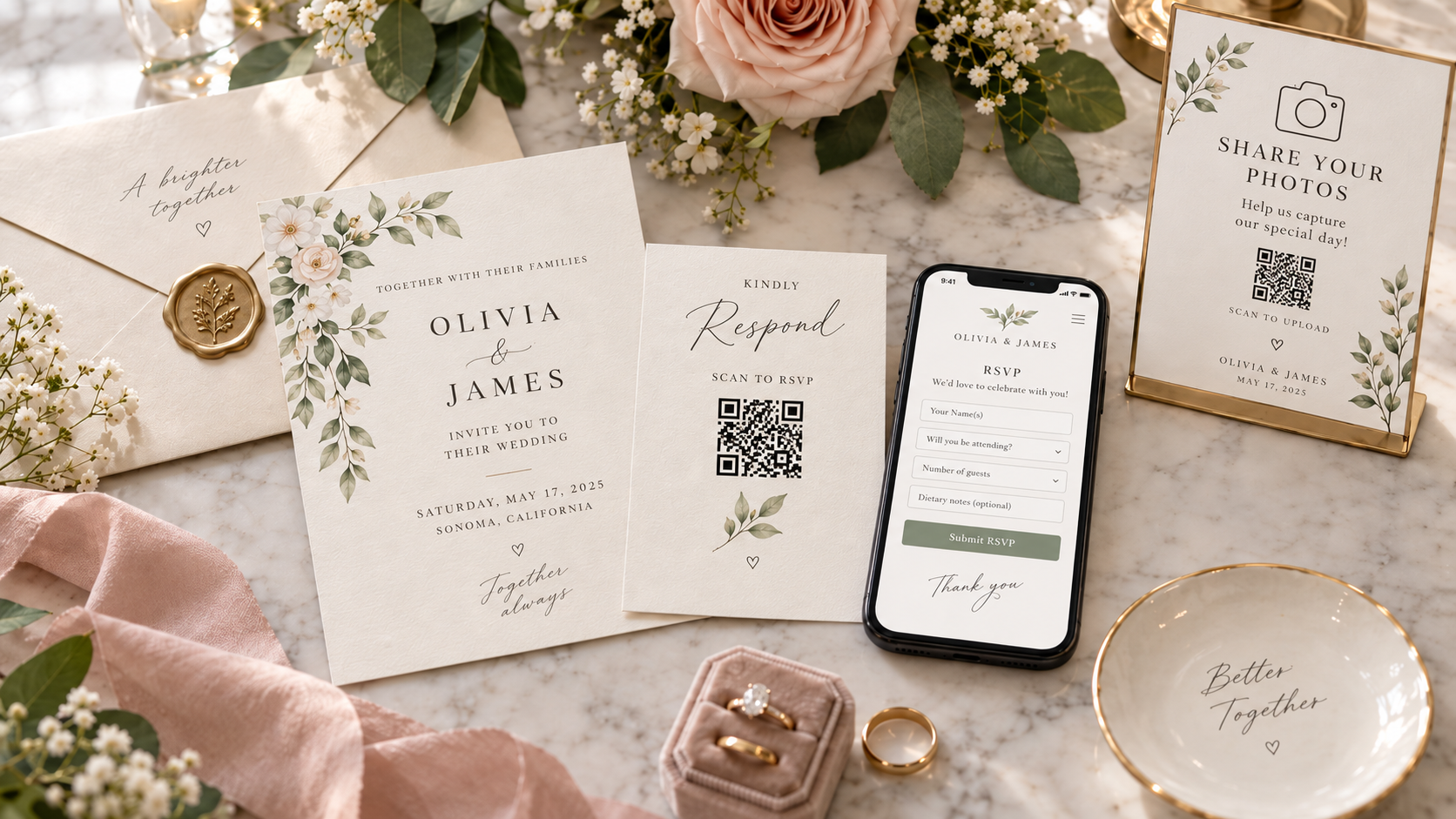
A QR code can be one of the smallest things on your wedding stationery and still remove a surprising amount of friction.
A guest receives your invitation, points their phone at the code and lands exactly where they need to go. No typing a long website address. No searching your names online. No paper response card to remember to mail back.
But wedding QR codes work best when they are treated as shortcuts, not decorations. If the same invitation has three unexplained codes, or a reception sign says only “Scan me,” guests have to guess what will happen next.
The simplest rule is this:
One QR code should have one clear job. Tell guests what that job is before they scan it.
For a modern Canadian wedding, three particularly useful jobs are online RSVP, guest photo sharing and day-of guest check-in. MapleVow supports all three as connected parts of the same wedding workflow.
1. Use a QR code on the invitation for online RSVP
This is the most practical use of a wedding QR code.
Instead of enclosing a return envelope and asking guests to mail a response card, you can print a small RSVP card or details insert with:
Please RSVP by September 1
Scan the QR code or visit:
maplevow.ca/s/your-names
With MapleVow, couples can print a QR code or share a link to their RSVP experience. Guests can respond from a phone without installing an app or creating an account.
Once the guest reaches the RSVP flow, you can collect much more than a yes or no. Depending on your setup, that can include:
Which invited people in the household are attending
Plus-one details
Meal choices
Allergies or dietary notes
High-chair needs
Custom questions
Responses to multiple wedding events
That information then stays connected to the guest list instead of living on paper cards that someone has to re-enter later.
2. Use a different QR code at the reception for guest photos
The invitation QR code and the reception photo QR code solve two different problems, so they should normally be presented as two different actions.
At the reception, a small sign might say:
Share your photos with us
Scan to upload the moments we may have missed.
MapleVow's guest photo wall lets guests scan a QR code and upload photos from their phone browser. They do not need to install an app or create an account.
Photos can feed into a live slideshow when that feature is enabled, with moderation controls available to the couple.
Good places for a photo-upload QR code include:
Cocktail tables
The bar
Guest-book table
Photo booth area
Dinner menus or table cards
A sign near the dance floor
You do not need one on every surface. Two or three well-placed prompts are usually easier to notice than ten competing signs.
3. Use QR codes for wedding-day check-in when it suits the event
For weddings with a formal arrival process, larger guest counts, assigned access, multiple events or a venue that benefits from live arrival tracking, QR check-in can be useful.
MapleVow's QR check-in feature can support guest arrival tracking while keeping the status connected to the same guest list used for RSVP planning.
Couples or their helpers can also search for guests manually when needed, which matters because a good check-in process should never depend on every guest having a phone ready at the door.
A check-in QR code is different from the general RSVP code printed months earlier. The day-of code or guest pass should be presented in the context of arrival, not mixed into invitation instructions unless there is a clear reason.
Where should you put a wedding QR code?
The right placement depends on what you are asking the guest to do.
Location | Best use | Suggested label |
|---|---|---|
RSVP insert in mailed invitation | Online RSVP | “Please RSVP by September 1” |
Back of details card | Wedding website / RSVP | “Wedding details & RSVP” |
Save-the-date | Wedding website, if already ready | “Visit our wedding website” |
Welcome sign | Schedule or guest information | “Today’s details” |
Reception table card | Guest photo upload | “Share your photos” |
Guest-book table | Guest photo upload | “Add your photos to our album” |
Arrival desk | Check-in | “Guest check-in” |
A QR code on the main invitation itself can work, but couples who want a traditional or minimalist invitation often prefer a separate RSVP/details card.
That keeps the formal piece visually clean and gives the code enough room to print clearly.
Always write what the QR code does
“Scan me” is not very informative.
A better label gives the guest a reason to act:
Scan to RSVP
Scan for wedding details
Scan to upload your photos
Scan for guest check-in
Scannez pour répondre / Scan to RSVP for a bilingual wedding
This also helps guests who are less comfortable with QR codes because they know what page they should expect to see.
Include a short URL as a fallback
Even if QR is your primary method, put a short, readable web address underneath it.
That helps when:
A guest is reading the invitation on the same phone they would normally use to scan
The camera has difficulty recognizing a damaged or poorly lit code
A guest prefers typing the address on a computer or tablet
A family member is helping someone RSVP remotely
The printed card has been photographed or photocopied at poor quality
The QR code should make RSVP easier, not become the only door into it.
Test the printed version — not just the file on your screen
A QR code can look perfect in a design file and become difficult to scan after printing, trimming, embossing or reducing the card size.
Before ordering the full stationery run:
Print the invitation or insert at its actual final size.
Scan it using more than one phone if possible.
Test from a normal holding distance rather than putting the camera directly against the card.
Confirm the link opens the correct live page.
Complete a full test RSVP, including meal choices and any conditional questions.
Test both English and French paths if the wedding is bilingual.
Check that ribbon, folds, vellum, wax seals or decorative overlays do not cover the code.
Keep the short URL visible as a backup.
On an iPhone, Apple supports scanning QR codes directly from the Camera app, which is one reason guests generally do not need a separate scanner app for this workflow.
Keep the code visually simple
You can make the surrounding stationery beautiful without making the code itself complicated.
For dependable scanning:
Keep strong contrast between the code and its background
Leave visible empty space around it
Avoid printing it across a fold or textured seam
Avoid placing it underneath transparent overlays that cause reflections
Do not shrink it until it is merely decorative
Test the real printed sample before approving the run
If you are working with a stationer or print shop, tell them the QR code is functional content and must remain scannable after any resizing or finishing.
Should the QR code open the RSVP directly or your wedding website?
Either can work. The better choice depends on the guest experience you want.
Send guests directly to RSVP when:
The invitation already contains the essential event details
The main action you want is a response
Your RSVP deadline is approaching
You want to reduce the number of taps before the form
Send guests to the wedding website when:
There are important travel or accommodation details
Guests need to see an event schedule first
The website contains venue directions, registry information or FAQs
You expect guests to revisit the link later
With MapleVow, the wedding website and RSVP are connected, so the choice does not have to create two separate systems.
What about personalized guest links?
Personal links are useful when different households have different invitations — for example, one household is invited to the rehearsal dinner and another is not, or one invitation includes a plus-one while another does not.
MapleVow supports guest-specific links and private guest portals as well as a shareable QR/link workflow.
The practical choice for printed stationery is often to use the same clearly labelled QR code on the RSVP insert, while personal digital links can be sent when a household needs a more specific experience.
The important thing is that the guest sees only the questions and events relevant to their invitation.
Do not use a QR code to hide essential information
A QR code is a convenience layer. It should not force guests to scan just to discover the date, venue city or basic RSVP deadline.
On a mailed invitation, keep the essential invitation information human-readable.
Use the QR code for the action and the details that are better kept online:
RSVP form
Meal selection
Changing schedule details
Maps and parking
Hotel information
Registry links
FAQs
Travel updates
This becomes especially useful when plans change after the invitations have already been mailed. You cannot edit a printed card, but you can update the linked wedding page.
A clean QR-code system for the whole wedding
You do not need a different technology for every stage. You need a clear purpose at each stage.
Before the wedding
Invitation insert → RSVP QR code → online RSVP → guest list updated
During planning
Pending guests → targeted email/SMS reminder → same RSVP system
At the wedding
Reception sign → photo QR code → guest uploads
Arrival/check-in workflow → guest pass or lookup → arrival status updated
When these actions are connected to one guest list, QR codes stop being isolated gimmicks and become useful shortcuts through the wedding journey.
Bilingual QR wording for Canadian weddings
You do not need twice as much text just because your wedding is bilingual. Keep QR calls to action short and paired.
RSVP
Please reply by September 1
Veuillez répondre avant le 1er septembre
Scan to RSVP / Scannez pour répondre
For guest photos:
Share your photos / Partagez vos photos
Scan to upload / Scannez pour téléverser
For a fully bilingual guest experience, MapleVow supports English and Canadian French wedding pages and RSVP flows when bilingual mode is enabled.
Wedding QR code checklist
Before you send anything to print, confirm:
The QR code opens the correct live page.
The page works well on a phone.
The code has a clear label explaining the action.
A short URL is printed nearby as a backup.
The code scans from the final printed proof.
You tested more than one device if possible.
RSVP questions and invited events are correct.
English/French paths work if applicable.
Decorative elements do not overlap the code.
Someone other than the person who built the page has tested the complete guest flow.
Frequently Asked Questions
Do wedding guests need a QR scanner app?
Usually not. Modern phones can generally scan QR codes through the built-in camera.
Apple, for example, documents QR scanning directly through the iPhone Camera app. MapleVow guests also do not need to install a MapleVow app to RSVP or upload guest photos.
Can I put a QR code on a formal wedding invitation?
Yes. If you want to preserve a traditional main invitation, place the code on a separate RSVP or details insert instead.
Should I print the website address too?
Yes. A short URL is a useful fallback and makes the invitation more accessible to guests who prefer not to scan.
Can the same QR code be used for RSVP and wedding photos?
Technically a webpage could contain many actions, but the guest experience is clearer when a code has one obvious purpose.
An invitation RSVP code and a reception photo-upload code happen at different moments and should be labelled accordingly.
Can a QR code replace a paper RSVP card?
Yes. Many couples keep the mailed invitation but replace the stamped reply card with an online RSVP link or QR code.
That hybrid approach is covered in detail in our guide to paper invitations with online RSVP.
Make the scan lead somewhere useful
A QR code does not improve a wedding invitation by itself. The experience on the other side does.
If guests scan and immediately see a mobile-friendly page with their RSVP, event details and clear next steps, the code has done its job.
MapleVow connects that response to your guest list, meal tracking, reminders, seating and other planning tools so you do not have to re-enter the information later.
That is the real benefit: fewer steps for the guest and fewer disconnected lists for you.
References
Apple Support Canada — Scan a QR code with your iPhone camera
https://support.apple.com/en-ca/guide/iphone/iphe8bda8762/iosMapleVow — How MapleVow works
https://maplevow.ca/how-it-worksMapleVow — Online Wedding RSVP in Canada
https://maplevow.ca/wedding-rsvp-canadaMapleVow — Wedding Guest Photo Wall
https://maplevow.ca/wedding-guest-photosMapleVow — Wedding QR Check-In
https://maplevow.ca/wedding-qr-check-in